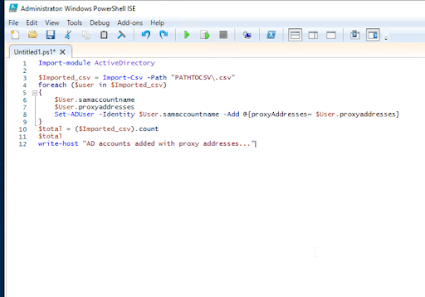
I did a cutover to a new domain and had to merge proxy addresses to existing users. Ill do a better write up later but here is the script I used(Thanks Google). It just needs two columns in the .csv. samaccountname and proxyaddresses. The proxyaddresses must be in smtp:user@domain.tld and the samaccountname is just the windows sam name. It will post any errors in powershell as it rolls. Script: Import-module ActiveDirectory $Imported_csv = Import-Csv -Path "PATHTOCSV\.csv" foreach ($user in $Imported_csv) { $User.samaccountname $User.proxyaddresses Set-ADUser -Identity $User.samaccountname -Add @{proxyAddresses= $User.proxyaddresses} } $total = ($Imported_csv).count $total write-host "AD accounts added with proxy addresses..."
Currently, we are in the process of migrating all users to Office 365 ProPlus. However, manually uninstalling lync and office can be a pain. An easier way to do this is to: Create a folder and make two separate xml files named lync.xml and proplus.xml. Put this folder in a publicly accessible share somewhere. In the lync.xml put in the following: <Configuration Product="LYNCENTRY"> <Display Level="None" AcceptEULA="TRUE" /> <Setting Id="SETUP_REBOOT" Value="NEVER" /> </Configuration> In the proplus.xml put in <Configuration Product="ProPlus"> <Display Level="none" CompletionNotice="no" SuppressModal="yes" AcceptEula="yes" /> <Setting Id="SETUP_REBOOT" Value="NEVER" /> </Configuration> Next, create a batch file named nuke.bat or whatever fancy thing you want to name it. Paste in the following: ...
I had a niche case where we were providing documents to an entity and wanted to ensure they were non ocr. For this we use Ghostscript and powershell to make this happen. Key takes: You need to ensure your path to ghostscript is set. Mine is C:\Program Files\gs\gs10.05.1\bin\gswin64c.exe. Ghostscript download: https://ghostscript.com/releases/gsdnld.html The script will prompt you for the input folder and the destination folder as well. Save it in notepad as a .ps1 file to the destination of your choice. Run the script and enjoy! Code: Add-Type -AssemblyName System.Windows.Forms # Prompt for source folder $sourceDialog = New-Object System.Windows.Forms.FolderBrowserDialog $sourceDialog.Description = "Select the folder with original PDFs" $null = $sourceDialog.ShowDialog() $sourceFolder = $sourceDialog.SelectedPath # Prompt for destination folder $destDialog = New-Object System.Windows.Forms.FolderBrowserDialog $destDialog.Description = "Select the folder to...

Comments
Post a Comment